本文介绍通过SSH客户端登录Linux实例时,提示“Permission denied, please try again”错误的解决方案。
通过本地SSH客户端登录Linux系统的轻量应用服务器实例时,即便输入了正确的密码,出现了类似如下的错误信息。
Permission denied, please try again.
SSH服务器拒绝了密码,请再试一次。
导致该问题可能有以下原因:
轻量应用服务器实例内禁用root用户登录:SSH服务对应配置文件/etc/ssh/sshd_config中的参数PermitRootLogin或PasswordAuthentication被设置为no。您可以参考禁止root用户登录引起问题的解决方法解决。
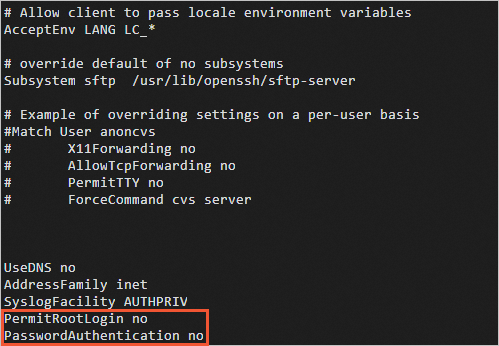
PermitRootLogin设置为no,表示禁用使用root用户登录。
PasswordAuthentication设置为no,表示禁用使用密码方式登录,但是可以使用密钥方式登录。
Linux系统启用了SELinux服务,导致root用户和普通用户无法登录。
执行cat /var/log/secure查看secure日志,若日志中包含error: Could not get shadow information for root.表示是启用了SELinux服务导致,您可以参考SELinux服务引起问题的解决方法解决。
使用救援远程连接轻量应用服务器实例。具体操作,请参见使用救援连接Linux服务器。
查看/etc/ssh/sshd_config的参数PermitRootLogin或PasswordAuthentication配置。
cat /etc/ssh/sshd_config
如下图所示,PermitRootLogin和PasswordAuthentication参数设置为no,表示禁止root用户登录,也禁止以密码方式登录。
根据业务需要,修改PermitRootLogin和PasswordAuthentication参数配置。
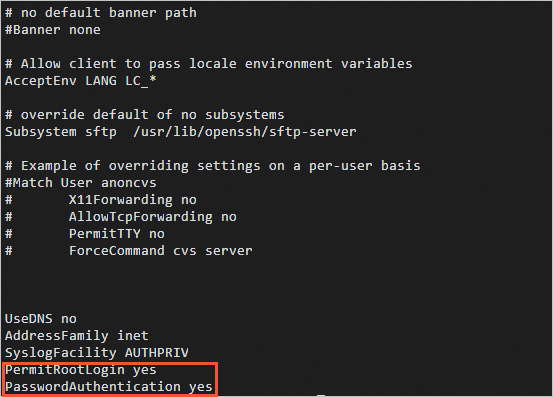
如果需要root用户登录,请将PermitRootLogin参数值设置为yes。
如果需要密码方式登录,请将PasswordAuthentication参数值设置为yes。
打开SSH配置文件。
vi /etc/ssh/sshd_config
修改PermitRootLogin和PasswordAuthentication参数值配置。
按Esc键,输入:wq保存修改。
执行如下命令,重启SSH服务。
systemctl restart sshd.service
您可以根据实际情况,选择临时或永久关闭SELinux服务解决SSH连接异常问题。
检查SELinux服务状态。 enabled:SELinux服务处于开启状态。 disabled:SELinux服务处于关闭状态。 使用救援远程连接轻量应用服务器实例。具体操作,请参见使用救援连接Linux服务器。 执行如下命令,查看当前SELinux服务状态。 系统显示类似如下。 说明 SELinux status参数值说明如下: 关闭SELinux服务。 临时关闭SELinux服务 永久关闭SELinux服务 执行如下命令,临时关闭SELinux服务。 /usr/sbin/sestatus -v
SELinux status: enabled
setenforce 0